Securing a Public Gitea Server: Config and Cleanup With psql 
If your Gitea instance is reachable on the internet, it can attract unwanted signups and repos. Oscar Chou’s post covers locking down registration and cleaning the database. Here are the same ideas, plus how to find your config path and use psql with your real Postgres settings.
1. Lock Down Registration (app.ini) 
First you need to know where Gitea’s config lives.
Find the config file path 
- Log in as an admin and open:
/-/admin/config
(e.g.https://your-gitea.example.com/-/admin/config) - On that page, find Configuration File Path — that’s the path to
app.ini.
Edit that file on the server and apply the hardening from Oscar’s article:
- Disable registration (hides the Register button; API signups can still be possible without more protection):
[service]
DISABLE_REGISTRATION = true
- (optional) Email domain allowlist (only allow signups from a domain you control — best option for a public server):
[service]
EMAIL_DOMAIN_ALLOWLIST = mydomain.com
- (optional) blocklist specific domains instead:
[service]
EMAIL_DOMAIN_BLOCKLIST = gmail.com, yahoo.com
Restart Gitea after changing app.ini.
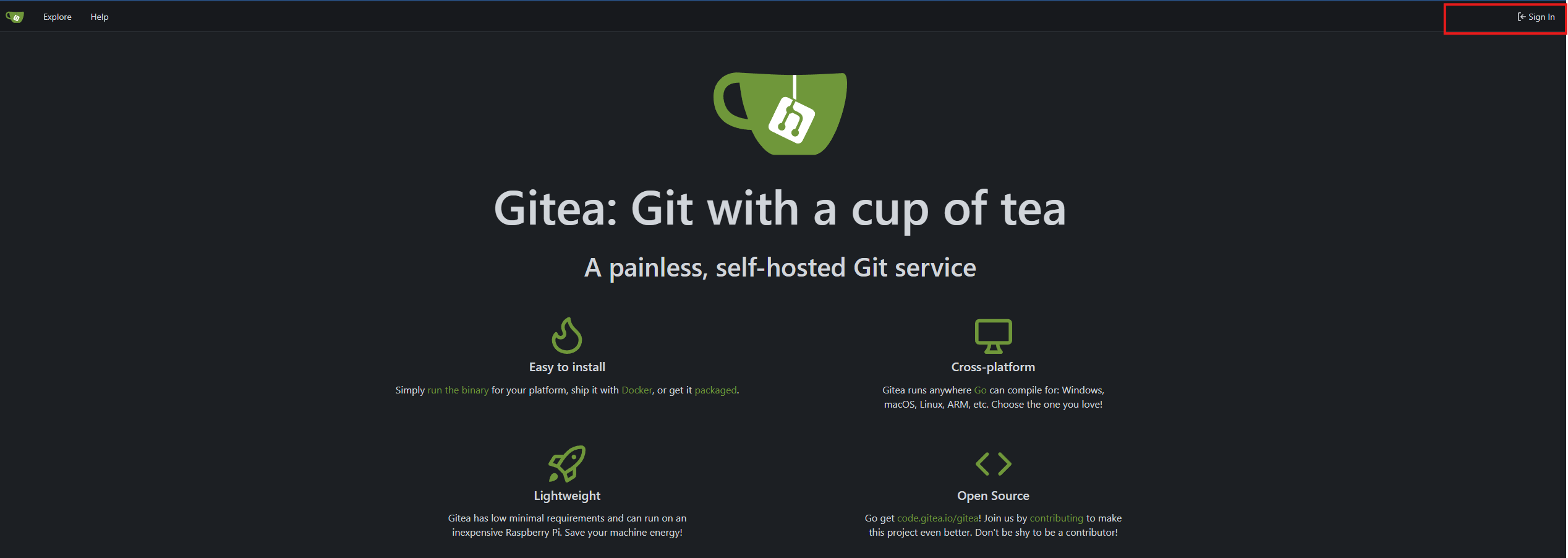
You should now see no Register button and just the Sign In:
2. Get Postgres connection details from app.ini 
In the same app.ini (or via the admin config page), open the [database] section. You’ll see something like:
[database]
PATH     = /var/lib/gitea/data/gitea.db
DB_TYPE  = postgres
HOST     = postgres
NAME     = gitea
USER     = gitea
PASSWD   = the_password
SCHEMA   =
SSL_MODE = disable
LOG_SQL  = false
For Postgres, the values you need are:
- HOST — hostname (e.g.
postgresin Docker, orlocalhost/ your DB server) - NAME — database name (e.g.
gitea) - USER — database user (e.g.
gitea) - PASSWD — password (use this when psql prompts)
PATH and gitea.db apply to SQLite; ignore them when using Postgres.
3. Connect with psql and clean up 
From a host that can reach the Postgres server (e.g. the same machine or a container with psql installed):
psql -h postgres -U gitea -d gitea
Replace postgres, gitea, and gitea with your HOST, USER, and NAME from app.ini. When prompted, enter PASSWD.
After you’re in the gitea database:
Cleanup steps (run in order; back up the database first):
-
List and then remove unwanted email addresses
Keep only your own (and any other legitimate) addresses in the delete condition. -
List users, then delete malicious ones
Keep only the user/organisation IDs you want to retain. -
List repositories, then delete those owned by the removed users
Match onowner_idto the users you deleted.
e.g. the DELETE FROM email_address ..., DELETE FROM public.user ..., and DELETE FROM repository ... statements from Oscar’s article
, adjusted for the user IDs you kept.)
Once config is tightened and the database is cleaned, your public Gitea server should stay in better shape. If you haven’t already, read the full post for the exact SQL and more context: How to Secure Your Public Gitea Server Without Complex Configuration .